Language: Deutsch English
Mandis Shop
Home > Brands > Remote controls Quasar > Remote control for Quasar VV 2015 W > Interactive key distribution Quasar VV 2015 W

Interactive key distribution Quasar VV 2015 W

Go to the remote

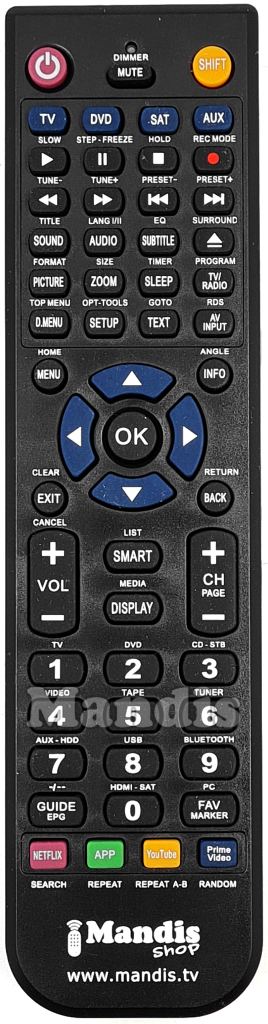
To facilitate the transition to the new remote control, we have created an interactive tool that allows you to identify the function of each button.


How to use the tool:

  1. Look at the images of the two remote controls: the original (left) and the replacement (right).
  2. Hover over a button on the original remote control. Press the button on mobile devices.
  3. Watch how the corresponding button on the replacement remote control lights up:
    • Blue: Direct function (without needing to press the SHIFT key).
    • Green: Function that requires pressing the SHIFT key before pressing the button.

Additional information:

  • SHIFT key: Some buttons on the replacement remote control require pressing the SHIFT key before pressing another button to perform certain functions. If a button on the original remote control requires the SHIFT key, it will be indicated in the image.

If you have any questions or need help using the new remote control, feel free to contact us.

On/Off
On/Off
Audio Out
No function
Play
Store
Pause
Counter Clock
Stop
Counter/Memory
Record
Search Index
Rewind
No function
F.Forward
No function
Prev.
No function
Next
Next Sv+V
Mark Add/Del
No function
Audio
No function
Timer/Record
No function
Ch.Memo
No function
Vps/Pdc
No function
Case Tape
No function
Timer/Sleep
No function
Progr/C/CH
No function
PAL/Secam
No function
Sp/Lp/Speed
No function
Video/Go-To
T.Set/Clock
Input Source
No function
Menu
No function
Info/Intro
No function
Menu Up
Frame Up
Menu Left
No function
OK Enter
No function
Menu Right
No function
Menu Down
Frame Down
Exit
Clear 00:00
Erase
No function
Slow/Dpss+
No function
Slow/Dpss-
No function
VCR/TV
Auto/Track
Display
No function
Chan+
No function
Chan-
No function
1
No function
2
No function
3
No function
4
No function
5
No function
6
No function
7
No function
8
No function
9
No function
0
No function
-/--
No function
Syst.
Count Remain
Skip/Search
Once
Repeat
Daily
Rec. On/Off
Weekly
Otr/A.Otr
Rec/Mode Pr/Check
Instructions for use

Download PDFDownload PDF


Frequently asked questions
Why does both the SHIFT button and another button illuminate sometimes?
When the SHIFT button and another key are illuminated means that to perform this function, you have to press the SHIFT button first and then the other illuminated button.
Why sometimes more than one button are illuminated on the replacement remote control?
When several buttons are illuminated and none of them is the SHIFT button, it means that you can use any of the illuminated keys to perform the function.
What do the green buttons above the remote controls?
Some remote controls can control several devices. In these cases it is necessary to use different codes to perform all functions, and clicking on these buttons you can switch between the codes. If there are no green buttons, it means that the original remote controls only one device or we have been able to put all the functions in the same code.
Why does the "No function" message come up in some buttons?
This means that this button does not perform any function. It may be that a button does not perform any function when a device is controlled, but that it is used when changing device.
Find remote controls
i
Search optionsshow
Copyright © Mandis Shop 2026
Contact us Download invoice Customer reviews Terms and Conditions Privacy and cookies policy Payment methods Shipments Shipping information Refund request Withdrawal form Universal Remotes Smart TV Universal remotes for €5